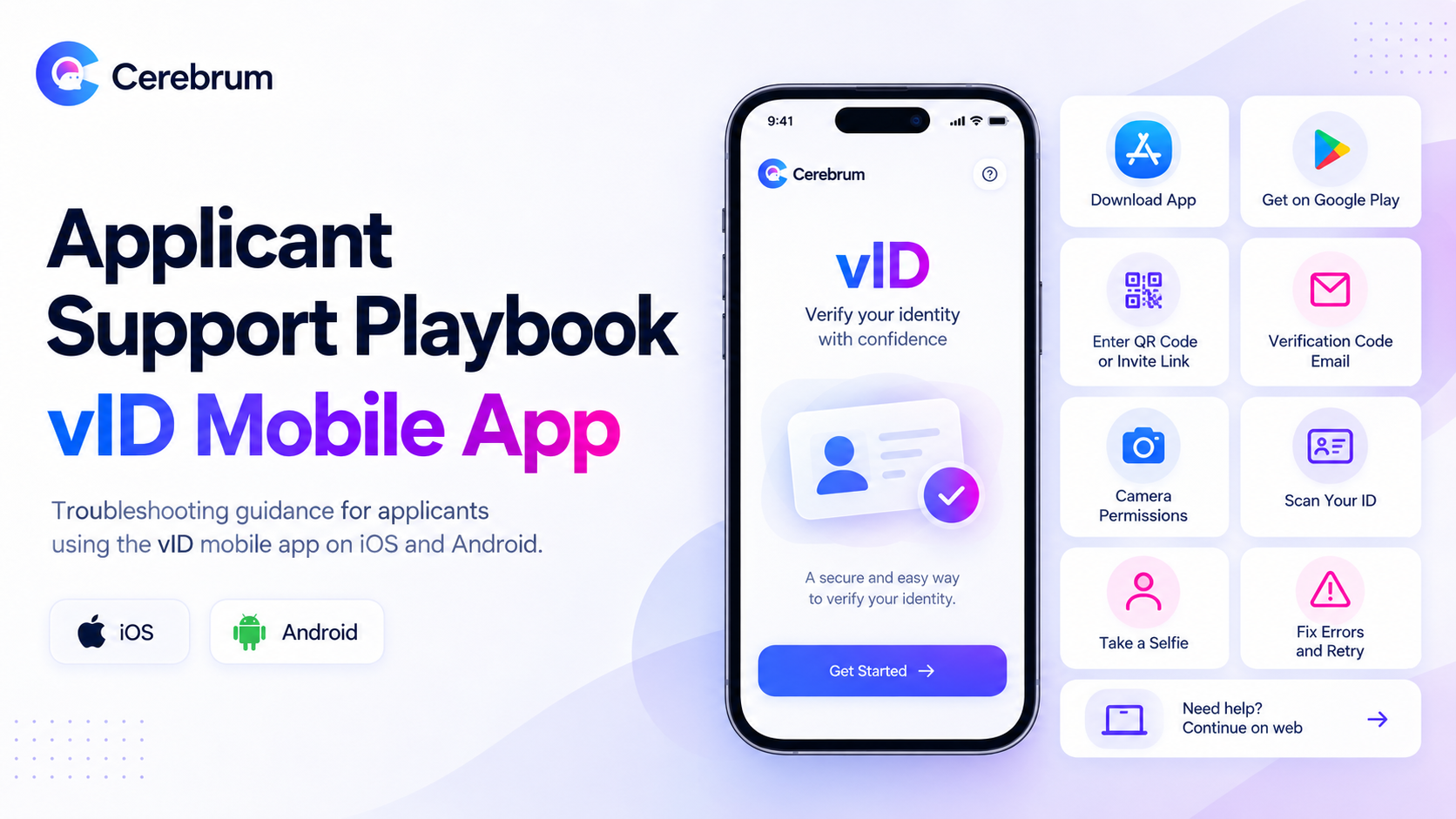
vID Mobile Applicant Support Playbook
Audience: CRA support and client services teams assisting applicants Covers: The vID mobile application on iOS and Android Companion document: Applicant Support Playbook — vID Web
Scope
This playbook covers applicants completing identity verification in the vID mobile application, downloaded from the App Store or Google Play.
If the applicant is completing verification in a browser, use the web playbook. The two experiences behave differently and share only some of their failure modes.
How to tell which one they are using. Ask: "Are you in an app called vID that you downloaded, or in a web browser like Chrome or Safari?" If they are unsure, ask whether they can see a browser address bar. No address bar means the app.
What is different about the app
Worth understanding before you troubleshoot, because it changes what you should recommend:
Capture quality is better. The app uses the device's native camera with features browsers cannot reach — tap-to-focus in particular. Applicants struggling with blurry scans in a browser will usually do better in the app.
Language follows the device. The app is localized to the applicant's device language. Supported languages are English, Spanish, French, Russian, and Hindi. Additional languages can be added on request. The web flow does not offer the same device-driven localization.
Entry is by link or QR code. The applicant arrives either by tapping an invitation link that deep-links into the app, or by scanning a QR code.
Single-use invitations are not supported in the app. If your integration issues one-and-done invitations, those applicants belong in the web flow. Routing them to the app produces an access error. Confirm with your technical team how your integration generates links.
Before you troubleshoot: four questions
Is this the vID app, or a browser?
iPhone or Android, and what OS version?
Where in the process are you — email verification, ID scan, or selfie?
What does the screen say? Verbatim, not paraphrased.
Record the answers. These plus the invite or order ID are what an escalation requires.
Handling ground rules
Never ask an applicant to email, text, or otherwise send you their ID images or selfie. Collecting identity documents outside the verification flow is a data handling decision with privacy and security implications. Establish any such workflow with your legal counsel before adopting it, and do not improvise it on a live contact.
Do not tell an applicant they failed, were rejected, or were flagged for fraud. Verification outcomes are determinations made by your organization. Support describes what happens next, not what the system concluded.
Scenario 1 — "I can't find the app" / "How do I download it?"
What to do:
Direct them to v-id.com for direct links to download the app in the App Store or Google Play Store
After installing, have them return to their invitation email and tap the link again, or scan the QR code.
If they cannot install applications — a managed work phone, a restricted device, insufficient storage, or an unsupported OS version — move them to the web flow instead. See Scenario 9.
Scenario 2 — "I scanned the QR code, and it took me to the app store"
What is happening: Expected behavior. If the app is installed, the QR code opens it. If it is not, the code routes to the store so the applicant can install it first.
What to do: Have them install the app, then return and scan the code again. Tell them to expect this so it doesn’t read like an error.
Scenario 3 — "I never received my verification code"
What is happening: The applicant needs an emailed code to verify their email address. It has not arrived or has been filtered.
What to do:
Confirm the address they are checking matches the invitation exactly.
Check spam, junk, and quarantine. Corporate mail filtering routinely holds these.
If they are checking email on a different device than the one running the app, confirm they are looking at the right inbox.
Request the code again from the verification screen.
If it still does not arrive: escalate with the applicant's email address and invite ID.
Scenario 4 — "The app says I don't have access" / "I'm getting an error right after signing in"
What is happening: This pattern — an access or permission error immediately after entry — is most often an account routing problem rather than anything the applicant did. It is known to occur where an applicant already holds an account with a password and is subsequently issued a passwordless sign-in invitation. It is specific to the app; the same applicant will typically complete the web flow without incident.
What to do:
Capture the exact error text and a screenshot.
Move them to the web flow. Request a web-only invitation link and send it. This is a reliable workaround and should be your first action, not your last.
Escalate in parallel with the invite ID, the applicant's email address, and the screenshot, so the underlying account state can be examined.
Do not spend a long time troubleshooting this in the app. Redirect and escalate.
Scenario 5 — "The camera isn't working"
What is happening: The app does not have camera permission at the operating system level, or another application is holding the camera.
What to do:
Check OS-level permission.
iPhone: Settings → scroll to vID → Camera → on
Android: Settings → Apps → vID → Permissions → Camera → Allow
Fully close and reopen the app after changing a permission. Backgrounding it is not enough.
Close other camera applications, including video conferencing apps running in the background.
Restart the device if permission is granted and the camera still does not initialize.
Confirm the physical camera works by opening the device's own camera app. If it does not work there, it is a device fault — move them to another device.
Scenario 6 — "It won't read my ID"
What is happening: The scan cannot extract readable data. The app has the best capture available, so persistent failure here usually points to the document or the conditions rather than the software.
What to do — coach them through a better capture:
Bright, even light. Avoid overhead light directly above the ID, which creates glare on laminate.
Flat, dark, non-reflective surface. Not a lap, not a hand.
Tap the screen to focus before capturing. This is available in the app and is the single most useful tip you can give.
Fill the frame, all four corners visible.
Hold steady for a beat.
Remove the ID from any sleeve, wallet window, or holder.
Capture the front and the back.
If it still fails, ask what kind of document it is. Temporary and interim credentials, tribal identification, and some non-standard documents may not be readable by the automated checks at all, in which case no amount of coaching will help. Escalate internally to your review team — the decision on whether to accept an alternative document is a policy question for your organization and is worth confirming with your legal counsel.
After two failed scan attempts, the applicant is routed to manual data entry rather than being blocked. This is intentional. Tell them it is fine to continue, and set the expectation that manual entry routes the order to review, so they are not surprised by a delay.
Scenario 7 — "I can't get the selfie to work"
What to do:
Rule out camera permission first — see Scenario 5.
Coach the capture: face the camera directly, even front-facing light, no bright window behind them, no sunglasses or hat, neutral expression, hold still and follow the prompts.
Do not hold the ID up beside or in front of the face. The selfie and the ID are separate steps. Holding both in frame is a frequent cause of a later flag.
Confirm they are using the front-facing camera and that nothing is covering the lens — cases and screen protectors occasionally obstruct it.
If the applicant cannot present an unobstructed facial image — for medical, disability, or religious reasons — do not improvise. An alternative package configuration that bypasses the selfie step may be available, but whether to offer it is a policy and accommodation decision for your organization. Escalate internally, and confirm your approach with your legal counsel, since accommodation obligations vary by jurisdiction and employment context.
Scenario 8 — "I got an error when I submitted"
What to do:
Ask for the exact error text and a screenshot.
Check status.cerebrum.com for a known incident.
Confirm the device has a working data connection. Mobile submissions fail more often on weak connections than desktop ones — ask them to move to wifi if they are on cellular data with poor signal.
Confirm the app is up to date. An outdated build is a real cause of submission failures. Have them check for an update in the App Store or Google Play.
Have them retry once.
Do not have the applicant retry more than twice. Repeated submissions can create duplicate orders requiring cleanup. Escalate instead.
If the error persists: move them to the web flow while you escalate. See Scenario 9.
Scenario 9 — Moving an applicant between app and web
Two link types behave differently:
Link type | Behavior |
|---|---|
Standard invite link | Opens the vID app if installed; otherwise opens the web flow |
Web-only invite link | Always opens the web flow, even if the app is installed |
To move an applicant out of the app and into the browser: ask them to navigate back to the invite email and select “already on your phone? tap here.” This will route them to the start page where they can choose to proceed on the mobile flow.
If you need a web-only link, you can send one directly from the Cognition invite table by searching using the applicant’s email and selecting “resend web invite.”
When to move someone to web:
An access or permission error on entry (Scenario 4)
Repeated submission failures in the app (Scenario 8)
They cannot install or update the app
Their invitation is single-use and the app will not accept it
When to move someone from web to app:
Persistent scan quality failures in a browser — the native camera and tap-to-focus are materially better
They need a language other than English and are on a device set to a supported language
Before uninstalling anything: if an applicant is mid-flow, do not have them delete the app as a troubleshooting step. Move them to web instead.
Scenario 10 — "I finished but nothing happened"
What is happening: The submission completed but did not clear automatic approval, so it is awaiting review. Normal, not an error.
What to say: Their verification was received and requires an additional review step. Nothing is wrong and there is nothing further for them to do right now.
What not to say: Do not tell them they passed, failed, or were flagged.
Internally: the order will appear in Cortex with a Pending status and score for your review team to resolve. See the vID Alert-to-Action Matrix.
Scenario 11 — "My invitation expired"
What to do:
Confirm the expiry in your system before acting — the applicant may be looking at an older invitation from a previous attempt.
Issue a new invitation via your platform or the invite table in Cognition
If expirations recur for a particular client, the window can be configured at the package level. Raise it with your account contact rather than reissuing repeatedly.
Escalating to Cerebrum
Escalate when: you have worked the relevant scenario without resolution, an error recurs across retries, you suspect a service fault, or the applicant is blocked in both app and web.
Submit through the support portal at portal.cerebrum.com/support and include:
Invite ID (VID-…) or order ID
Applicant email address
Device model, operating system and version, and app version
Exact error text and a screenshot
Timestamp of the failed attempt, with time zone
Whether the applicant entered via link or QR code
Whether the web flow was attempted, and what happened
What steps you have already tried
Escalations without the invite or order ID cannot be investigated.
Check status.cerebrum.com before escalating a suspected platform-wide issue.
Quick reference
Symptom | First thing to try |
|---|---|
Can't find the app | Have the applicant visit v-id.com for direct links to download the app |
QR code went to the app store | Expected — install, then scan again |
No verification code | Spam and quarantine; confirm the address matches the invite |
Access error right after sign-in | Send a web-only link; escalate in parallel |
Camera not working | OS-level permission, then fully close and reopen the app |
ID won't scan | Tap to focus; flat dark surface, even light, no sleeve |
Selfie won't work | Camera permission; separate the selfie and ID steps |
Error on submit | Status page, check for an app update, one retry |
Needs a different language | Device language drives it; confirm it is a supported language |
Stuck in the app, needs browser | Web-only link — the standard link will deep-link back |
"Nothing happened" | Normal — additional review; no applicant action needed |
This playbook is operational guidance for support teams. It does not constitute legal advice. Decisions about accommodating applicants who cannot complete standard verification, about collecting identity documents outside the verification flow, and about what is communicated to an applicant regarding a verification outcome should be established with your legal counsel.
Was this helpful?