vID Integration Routes - Overview
Purpose: A high-level reference for the integration route options presented on the Cerebrum client onboarding form. Each route describes how the applicant reaches vID, where results land, and what setup is required.
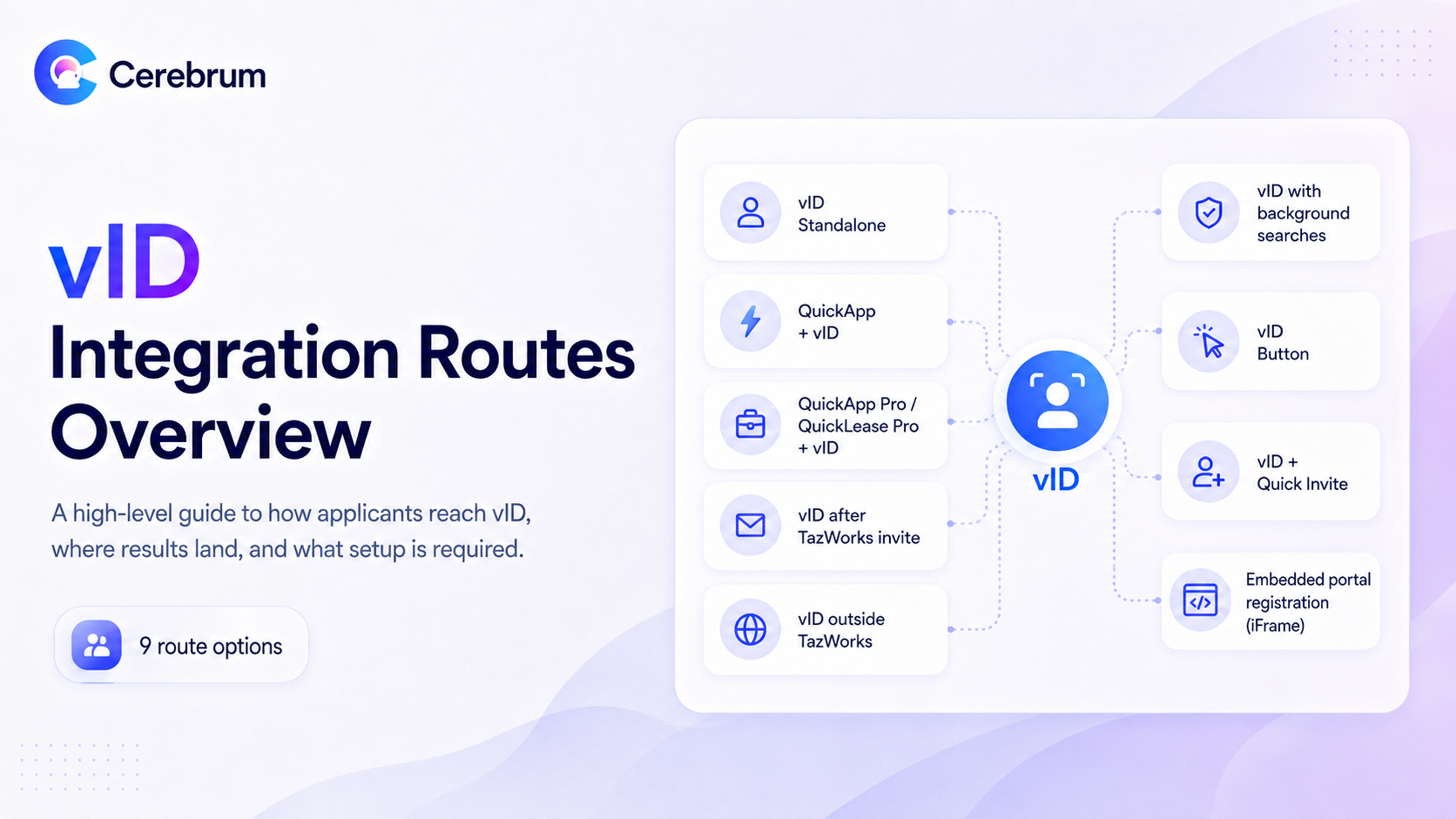
Choosing a route at a glance
Route | Platform | Applicant touchpoints | Setup effort |
|---|---|---|---|
vID Standalone | Any / none | 1 (vID only) | Lowest |
QuickApp + vID | TazWorks | 1 (combined) | Low — Taz enablement + API key |
QuickApp Pro / QuickLease Pro + vID | TazWorks | 1 (combined) | Low — Taz enablement + API key |
Background check after vID completes — invite from TazWorks | TazWorks | 1, then auto-dispatch | Medium — bot integration |
Background check after vID completes — invite outside TazWorks | Tazworks | 1, then auto-dispatch | Medium — bot integration |
vID invite dispatched with searches | TazWorks | 1 (parallel) | Medium — bot integration |
vID Button | TazWorks | 1 (combined) | Medium |
vID + Quick Invite | Accio Data | 1 (combined) | Low — vendor config |
Embedded portal registration (iFrame) | Any | 1 (in CRA's own flow) | Medium — package-level enablement |
1. vID Standalone (No Integration)
vID runs entirely on its own. The applicant receives a white-labeled invitation and completes email verification, biometric consent, liveness capture, ID scan, SSN collection, and disclosures in the vID mobile app or web flow. Results are reviewed in Cortex, and the CRA retrieves the report from there.
Best for: CRAs evaluating vID, clients on platforms Cerebrum doesn't integrate with, and one-off or ad hoc verification needs.
Setup: No API key, package mapping, or platform enablement required. Fastest path to a live order.
Trade-off: No automatic write-back — results are pulled manually from Cortex.
Demo: vID Mobile Demo Video 2026
2. QuickApp + vID (Taz Specific)
The native TazWorks integration. vID is embedded directly in the QuickApp so the applicant completes disclosures and identity verification in a single, uninterrupted flow. The order displays an ID-verified/on-hold banner in TazWorks, and the completed vID PDF is filed under Attachments.
Best for: CRAs already using QuickApp who want the lowest-friction applicant experience.
Setup:
CRA contacts TazWorks to enable the native vID + QuickApp integration on their instance.
CRA emails Cerebrum for setup instructions, the package ID, and guidance on the API key.
CRA generates the API key in the admin interface and completes product configuration.
When adding new clients, the CRA will submit an onboarding form, then configure the client profile and client product settings once they receive a package ID from Cerebrum
Watch for: Leave the standalone vID search disabled at the product level. If vID is also configured as a required search, a second invite is dispatched upon order creation, resulting in duplicate disclosure signing and duplicate charges.
Demo: vID Native QuickApp Demo Video
Setup guide: vID Native QuickApp Integration Instructions (PDF)
3. QuickApp Pro / QuickLease Pro + vID (Taz Specific)
vID is embedded directly in the QuickApp Pro/QuickLease Pro so the applicant completes disclosures and identity verification in a single, uninterrupted flow.
Best for: CRAs running QuickApp Pro or QuickLease Pro who want identity verification inside the existing application form.
Demo: Follows the same flow as showing in the native QuickApp Demo Video
Setup guides:
How to set up the ID verification process on QuickApp Pro + Application Form (PDF)
How to set up Partner Integration for CRAs — QuickApp Pro+ (PDF)
4. vID invite initiated in TazWorks — background check dispatched once vID is complete
Referred to internally as vID top-of-funnel. The order is created in TazWorks first, and the vID invite is dispatched from there. vID is the only data collection tool the applicant encounters. Once verification is complete, results are sent back to TazWorks, and the remaining searches are automatically initiated using the verified data.
Best for: CRAs who want their existing TazWorks ordering process to stay unchanged while avoiding spend on searches for applicants who cannot pass identity verification.
Setup: Requires the vID bot integration — roughly a 45-minute one-time backend/API setup with a developer on the call. vID is configured as the only required search on the product, and the remaining searches are marked hidden or optional to be dispatched once the vID result is returned.
Demo: vID + TazWorks Full Flow
5. vID invite initiated outside TazWorks — background check dispatched once vID is complete
The same gating logic, but the invite originates on the Cerebrum side rather than in TazWorks — from Cognition, the vID Chrome Extension, or a registration link the client distributes. The TazWorks order does not exist until the applicant completes vID; Cerebrum creates it once the verified data is available, and searches are dispatched from there.
Best for: Clients who source applicants outside a TazWorks-driven workflow, and any client using applicant pay.
Setup: Requires the vID bot integration. Order certifications must be set to None so the order can be created in TazWorks after vID completes.
Note: All searches set to required will be auto-dispatched once vID is complete.
6. vID Invite Dispatched at the same time as the background check searches (Taz Specific)
vID is added as a standard search on the product in TazWorks, and the vID invite is dispatched alongside the other searches rather than gating them.
Best for: High-volume clients prioritizing turnaround time over cost control, where searches should proceed in parallel with identity verification.
Setup: Requires the vID bot integration and vID configured as a search on the product.
Trade-off: The applicant could receive two separate touchpoints, and searches are billed regardless of the verification outcome.
7. vID Button (Taz Specific — QuickApp Replacement)
vID replaces QuickApp as the applicant-facing data-collection step and is launched from a vID button within TazWorks.
Best for: CRAs who want the single-flow applicant experience of QuickApp + vID but are not running QuickApp, or who want to retire QuickApp entirely.
Setup:
CRA contacts TazWorks to enable the native order with vID button on their instance.
CRA emails Cerebrum for setup instructions, the package ID, and guidance on the API key.
CRA generates the API key in the admin interface and completes product configuration.
When adding new clients, the CRA will submit an onboarding form, then configure the client profile and client product settings once they receive a package ID from Cerebrum.
CRA should ensure all order certifications are set to “none” so Cerebrum has permission to create an order in your instance.
8. vID + Quick Invite (Accio)
Identity verification is initiated within the Accio workflow, and results are posted back automatically.
Best for: CRAs on the Accio Data platform.
Setup:
Ask Accio to upgrade the account to the beta version and provide the account, username, and password for the Cerebrum vendor configuration.
In Accio, go to Operations → Site Customization → Site Setup, scroll to Vendor Configuration, and expand the Cerebrum panel.
Enter the Cerebrum API key, save, and refresh. The package dropdown populates automatically — no package ID needs to be supplied.
Status mapping in Accio:
Accio status | Meaning |
|---|---|
Waiting on Applicant | Applicant has not yet submitted their vID order |
Verification Status Unknown | Order is pending manual review in Cortex |
Does Not Match Applicant | Subject data did not match the applicant data from the ID check |
Passed | Applicant was automatically vID verified |
Failed | Applicant was scored "ID not verified" after manual review in Cortex |
Demo: vID Accio Quick Invite Demo Video
9. Embedded portal registration in the CRA's existing workflow (any platform)
The iFrame flow. vID registration is embedded directly within the CRA's workflow, whether it runs on TazWorks, Accio, or a proprietary platform. The iFrame is enabled at the package level.
iFrame URL format:
https://vidregistration.cerebrum.com/?packageId={PACKAGE_ID}
Best for: CRAs with a proprietary applicant portal, or those who want vID to appear fully inside their own branded experience.
Current limitation: Because the invite is created before the order ID exists in TazWorks or the CRA's system, order details are not automatically passed through. CRAs must manually pull order details from Cortex.
Was this helpful?